
The Complete Canva Guide for Non-Designers
One of the biggest roadblocks for new digital product creators is design.
You know you need professional-looking graphics for:
- Ebooks
- Courses
- Sales pages
- Social media
But:
❌ You’re not a designer
❌ You don’t know Photoshop
❌ You don’t have the budget to hire a graphic designer for every little thing
Here’s the Good News
You don’t need design skills anymore.
With AI-powered tools, anyone can create stunning, professional graphics in minutes.
And today I’m going to show you exactly how.
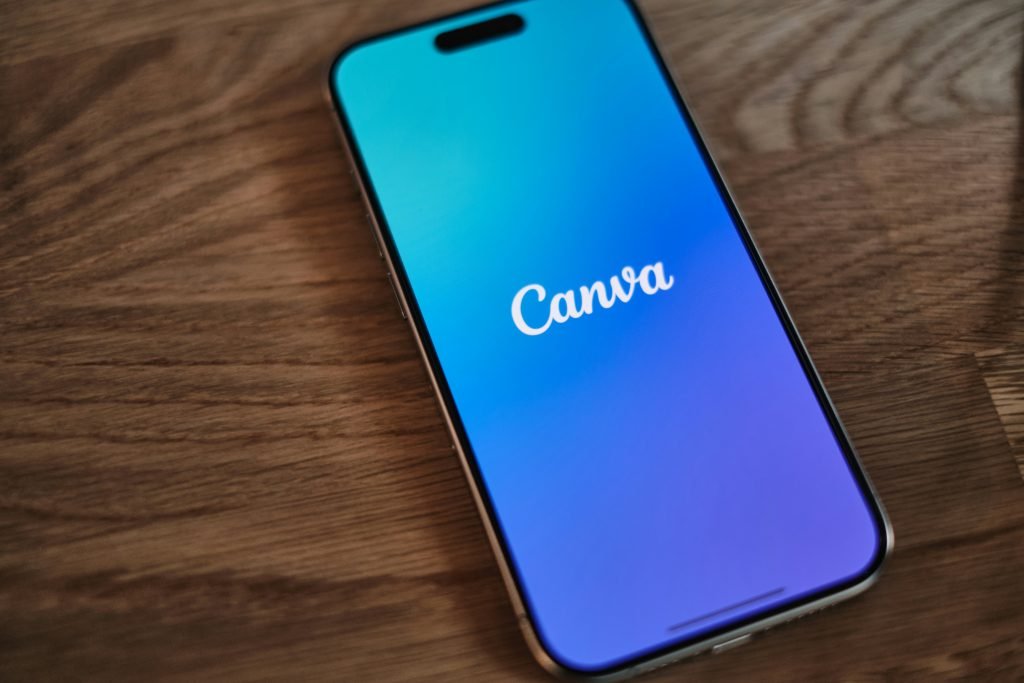
The Tool That Changed Everything: Canva
Canva is a free design platform that makes creating graphics as easy as dragging and dropping.
It has thousands of templates for every type of design you can imagine:
- Ebook covers
- Social media posts
- Presentation slides
- Flyers
- Business cards
- You name it
But what makes Canva truly powerful is its AI features.
The 6-Step Process to Create Professional Graphics
Step 1: Choose the Right Template
When you open Canva, you’ll see a search bar.
Type in what you need:
- “Ebook cover”
- “Instagram post”
- “YouTube thumbnail”
Canva will show you hundreds of pre-designed templates.
These aren’t basic templates. They’re professionally designed layouts created by real designers.
All you have to do:
- Pick one that matches your style
- Customize it
Step 2: Customize the Text
Click on any text in the template and replace it with your own.
Canva makes it easy to:
- Change fonts
- Adjust sizes
- Update colors
If you’re not sure which fonts to use, Canva’s AI will suggest font pairings that look good together.
You don’t have to guess. It’s all done for you.
Step 3: Replace the Images
Most templates come with stock photos, but you’ll want to use:
- Your own images
- Better stock photos
Canva has a massive library of free stock photos built in.
Just search for a keyword and Canva will show you thousands of options.
You can also upload your own photos.
The AI Magic: Background Remover
Canva has a background remover tool that lets you remove the background from any image with one click.
This is a feature that used to require Photoshop skills, but now it’s automatic.
Step 4: Adjust the Colors
If you have brand colors:
Apply them to your design with one click.
If you don’t have brand colors:
Canva’s AI can suggest color palettes that work well together.
You can preview different color schemes instantly and pick the one that feels right.
Step 5: Add Elements and Icons
Canva has millions of design elements you can add to your graphics:
- Icons
- Shapes
- Lines
- Stickers
- Illustrations
You can search for anything and drag it onto your design.
The AI even suggests elements that match your design style.
Step 6: Export Your Design
Once you’re happy with your graphic, just click download.
Canva lets you export as:
- PNG
- JPG
If you’re creating something for print, you can even export as a high-resolution file.
What You Can Create With Canva
1. Ebook Covers
- Pick an ebook cover template
- Replace the title with your book’s title
- Change the colors to match your brand
- Add your name
Professional ebook cover in 5 minutes.
2. Course Slides
Canva has presentation templates specifically designed for online courses.
You can create an entire slide deck in an hour.
Everything is already laid out. You just add your content.
3. Social Media Graphics
Need:
- A quote graphic for Instagram?
- A promotional post for Facebook?
- A YouTube thumbnail?
Canva has templates for every platform, and they’re already sized correctly.
No more guessing about dimensions.
4. Lead Magnet Designs
If you’re creating:
- A checklist
- A guide
- A workbook
Canva has templates for that too.
You can make your freebie look just as professional as a paid product.
5. Sales Page Graphics
- Banners
- Headers
- Icons
- Comparison charts
All of it can be created in Canva without hiring a designer.
Why This Works So Well
You don’t need to start from scratch.
You don’t need to:
❌ Understand design principles
❌ Spend hours tweaking every little detail
The templates do most of the work for you.
You just customize them to fit your brand.
“But Won’t My Designs Look Like Everyone Else’s?”
No.
Here’s why:
- There are thousands of templates to choose from
- Once you customize the colors, fonts, and images, your design will be unique
Canva’s Brand Kit Feature
This is a game changer for maintaining consistency.
Once you set up:
- Your brand colors
- Your fonts
- Your logos
Canva remembers them.
Every time you create a new design, you can apply your brand kit with one click.
This keeps all your graphics consistent, which makes your business look more professional.
Is Canva Really Free?
Yes, the free version is powerful enough for most beginners.
You get access to:
✅ Thousands of templates
✅ Stock photos
✅ Design elements
Canva Pro ($13/month)
Unlocks even more features:
- Background remover
- Brand kits
- Additional templates
- Resize designs instantly
- More stock photos and elements
If you’re serious about creating digital products, I’d recommend upgrading to Canva Pro.
But you can absolutely start with the free version and upgrade later when your business grows.
Your Action Plan
Step 1: Go sign up for Canva right now (if you haven’t already)
Step 2: Pick one thing you need to create:
- An ebook cover
- A social media post
- A course slide
Step 3: Spend 15 minutes playing around with the templates
I guarantee you’ll be amazed at what you can create in such a short time.
Ready to Master Canva?
Want to see detailed tutorials on how to use Canva for every type of digital product graphic?
I’ve put together a complete training that includes:
✅ Advanced tips and tricks
✅ How to make your designs look even more professional
✅ Templates and workflows
✅ Real examples and case studies
👉 Click here to watch the free training now
You don’t need to be a designer to create professional graphics.
You just need the right tools.
Canva is that tool.